Showing posts with label Activiti. Show all posts

Friday, 29 April 2016

Activiti BPMN elements

The simple diagrams that BPMN consists of to represent the business workflow prove to be helpful for both business users and developers. The four basic categories of BPMN elements are as follows:
  1. ‹‹ Flow objects
  2. ‹‹ Connecting objects
  3. ‹‹ Swim lanes
  4. ‹‹ Artifacts

Flow objects
Flow objects consist of various shapes that represent the core elements of business process representation, which characterize the behavior of a business process. To represent the flow of the object, three elements are used: events, activities, and gateways.
  • Events :Events can be considered as the actions that occur during the business process. They are represented using a circle in a business process diagram. An intermediate event is represented using concentric circles. There are three types of events: start, intermediate, and end.
    • The start event : The start event indicates the start of your business process. It is represented using a single circle. In your business process, you should have only one start event. The start event can be represented as follows:
    • Intermediate event : Intermediate event refers to the events taking place between the start and end of the business process. These events do not affect the business process as they do not start or terminate the business process. You can have n number of intermediate events within your business process. The intermediate events are represented using concentric circles, as follows:
    • The end event : The end event is represented using a thick-bordered circle as follows, and indicates the end of your business process; there should be at least one end event within your business process:
  • Activities : Activities represent the tasks or work that is being performed within a business process. The shape that represents the activities in a BPMN is a round-cornered rectangle. There are various types of activities, such as task, Sub-Process, and the call activity. 
    • Task : A task activity is used in a business process when there is an activity to be implemented within a process. It is represented by a round-cornered rectangle. Tasks can be used when there are some actions to be performed in your business process. Various types of tasks  are provided by BPMN, such as the script task, user task, service task, and mail task. A task is represented as follows: The following are the different types of tasks:
      • Script task: This task is used for the automation of a task. We can have our logic     implemented here.
      • User task: This task can be used in a business process when human interaction is     required for the business, for example, when details are to be filled or verified by   a human. 
      • Mail task: This is a type of service task that has services implemented to send e-mails or notifications from the process.
      • Service task: This refers to a custom task in which you want some specific operations to be done. Similar to the mail task, which is a type of service task that is used to send e-mails from the process, we have a custom service written for the process.
    • Sub-Process : A Sub-Process is a task that is used to represent levels within our business process. This task is useful when we want to display the leveled diagram of a business process. A Sub-Process will be represented as follows:
    • The call activity : With the help of the call activity, we can re-use a global process or task that is available within the process engine. On executing the call activity, the control of execution is transferred to the global process or task. A call activity is represented as follows: 

Friday, 22 April 2016

What is BPM (Business Process Modeling)? Lifecycle of BPM.

BPM Stands for Business Process Modeling, with respect to system engineering, providers method, and techniques to make a business process more efficient, adaptive and effective to accomplish business tasks. We will use the BPMN 2.0 modeling notations for designing our business process with the Activiti Engine. It provides a comprehensive approach to aligning an organization's business process as per the client's requirement. With the help of BPM, organizations can be more effective, efficient, and capable of accepting changes rather focusing on a traditional hierarchical  management approach.

The BPM lifecycle

The creation of a business process comprises the five phases of business process management, commonly known as the BPM lifecycle. The five phases are as follows:

  1. Design
  2. Modeling
  3. Execution
  4. Monitoring
  5. Optimization

Each phase is designed to implement a successful process solution. With the help of the BPM lifecycle, one can understand that implementing a business process is an ongoing process due to the changes occurring within the business environment. The five phases of the BPM lifecycle are as follows:

Design
The design phase of a lifecycle is responsible for the identification and design of a business process. The areas focused on within this phase are identifying activities, analyzing possible changes within the organization, defining service-level agreements, and specifying process details, such as actors, notifications, and escalations, within the business process. The main purpose of this phase is to ensure that a correct and efficient theoretical design is prepared. This phase belongs to the process owners who are deciding the process flow for the organization.

Modeling
Modeling is the second phase of the cycle; it's where the business process is validated and fully specified. In the design phase, the theoretical design is prepared, whereas in this phase, the theoretical business process is designed using various BPMN elements. This phase is mainly the responsibility of system analysts and integrators. 

Execution
Once the theoretical design is transformed into a model, it can be implemented in the business process application. Now, it's time to automate the execution of the business process. This is the phase where the services are defined to automate the business process. The languages used to create the services are WSBPEL and BPMN 2.0. This phase belongs to the developers who are developing the business process.

Monitoring
The monitoring phase keeps track of the individual processes. Performance monitoring for each and every process can be provided statistically, and the states of the process can also be maintained. In the monitoring phase, problems within a business process can be identified and corrective steps can be taken to improve it.

Optimization
The optimization phase is the last phase of the lifecycle. In this phase, the performance information of the process is fetched from the monitoring phase and improvements within the process and changes in the business requirement are identified. Once the optimization phase is completed, the business process again goes into the design phase and the cycle is completed.

Creating our first process in Activiti BPM.

Now is the right time to look at one simple process in Activiti. We will be using the Eclipse IDE for designing the business process. For now, we will just gain an understanding about creating a process.

We will create a simple leave process for employees in which we will have a script task and a user task. A script task is used for adding some logic within a process and a user task is used to indicate that there is some human interaction required in the process. 

Perform the following steps to create a process in Activiti:
  1. Create a new Activiti project in Eclipse by navigating to File > New > Project > Activiti. Project and name your project SimpleLeave-Process.The 
  2. SimpleLeave-Process project will have a folder structure as shown in the following screenshot:
  3. Now create an Activiti Diagram in the src/main/rersource/diagram folder structure.
  4. To create a diagram, navigate to File > New > Other > Activiti Diagram and name your diagram SimpleLeaveProcess. The folder structure is shown in the following screenshot:
  5. On opening the .bpmn file, a white canvas will appear on which you can design the business process.
  6. To draw a business process, there is a Palette option available which contains most of the BPMN diagrams for designing the business process. First, we will be adding a StartEvent on the canvas from the Event tab of the Palette option. All these options  are shown in the following screenshot:
  7. To add a script task, click on StartEvent and it will display the options as shown in the following screenshot. From those options, select the new element option, which will list down all the elements; from those elements, select Create script task, as shown in the following screenshot:
  8. To add a user task, click on Script Task and select new user task, which is the optiondisplayed with a human icon as shown in the following screenshot:
  9. As each and every business process should have at least one end event, to add an end event, click on User Task and select the new end event option, as shown in the following screenshot: 
  10. After adding the end event to the process, your business process should look similar to the following screenshot: 

  11. Now we have to make some changes to the properties of the process.
  12. First, we will change the properties of the start event. Select the start event, open the Properties tab, and add Form Properties in the Form tab using the New button as shown in the following screenshot:
  13. Now, edit the properties for the script task. In the Main config tab, there is a Script field available; within that, insert the print statement out:println"ApplyforLeaveby"+Empname;. The Empname property is the form property that we created in the start event. The script task will print the message on the console when it is executed, as shown in the following screenshot:
  14. Now we will edit the user task properties. In the General tab, we will populate the Name property, which will be displayed in the user task node, as shown in the following screenshot:
  15. As the user task is to be performed by a specific user, we have to provide the name of the user who will be responsible for executing it.
  16. We have to populate the Assignee property of the Main config tab with the name of the person to whom the task should be assigned; as shown in the following screenshot, we will be assigning it to kermit:
  17. We can  view the .bpmn file in the XML format. Right-click on the SimpleLeaveProcess.bpmn  file, browse to OpenWith | XML Editor, and it will be available in the XML format. The result of this step is shown in the following screenshot:

Thursday, 21 April 2016

Getting Started with Activiti BPM

Let's take a quick tour of the Activiti components so you can get an idea of what the core modules are in the Activiti BPM that make it a lightweight and solid framework. You can refer to the following figure for an overview of the Activiti modules:

In this figure, you can see that Activiti is divided into various modules. Activiti Modeler, Activiti Designer, and Activiti Kickstart are part of Modelling, and they are used to design your business process. Activiti Engine can be integrated with your application, and is placed at its center as a part of Runtime. To the right of Runtime, there are Activiti Explorer and Activiti Rest, which are part of Management and used in handling business processes. Let's see each component briefly to get an idea about it. 

The Activiti Engine
The Activiti Engine is a framework that is responsible for deploying the process definitions, starting the business process instance, and executing the tasks. 

The following are the important features of the Activiti Engine:
  1. Performs various tasks of a process engine
  2. Runs a BPMN 2 standard process
  3. ‹‹It can be configured with JTA and Spring
  4. Easy to integrate with other technology
  5. Rock-solid engine
  6. Execution is very fast
  7. Easy to query history information
  8. Provides support for asynchronous execution
  9. It can be built with cloud for scalability.
  10. Ability to test the process execution.‹
  11. Provides support for event listeners, which can be used to add custom logic to the business process.
  12. Using Activiti Engine APIs or the REST API, you can configure a process engine
  13. Workflow execution using services

You can interact with Activiti using various available services. With the help of process engine services, you can interact with workflows using the available APIs. Objects of process engines and services are threadsafe, so you can place a reference to one of them to represent a whole server.

In the preceding figure, you can see that the Process Engine is at the central point and can be instantiated using ProcessEngineConfiguration. The Process Engine provides the following services:

  1. RepositoryService: This service is responsible for storing and retrieving our business process from the repository
  2. RuntimeService: Using this service, we can start our business process and fetch information about a process that is in execution
  3. TaskService: This service specifies the operations needed to manage human (standalone) tasks, such as the claiming, completing, and assigning of tasks
  4. IdentityService: This service is useful for managing users, groups, and the relationships between them
  5. ManagementService: This service exposes engine, admin, and maintenance operations, which have no relation to the runtime execution of business processes
  6. HistoryService: This service provides services for getting information about ongoing and past process instances
  7. FormService: This service provides access to form data and renders forms for starting new process instances and completing tasks

The Activiti Modeler
The Activiti Modeler is an open source modeling tool provided by the KIS BPM process solution. Using the Activiti Modeler, you can manage your Activity Server and the deployments of business processes. It's a web-based tool for managing your Activiti projects. It also provides a web form editor, which helps you to design forms, make changes, and design business processes easily.

The Activiti Designer
The Activiti Designer is used to add technical details to an imported business process model or the process created using the Activiti Modeler, which is only used to design business process workflows. The Activiti Designer can be used to graphically model, test, and deploy BPMN 2.0 processes. It also provides a feature to design processes, just as the Activiti Modeler does. It is mainly used by developers to add technical detail to business processes. The Activiti Designer is an IDE that can only be integrated with the Eclipse plugin.

The Activiti Explorer
The Activiti Explorer is a web-based application that can be easily accessed by a non-technical person who can then run that business process. Apart from running the business process, it also provides an interface for process-instance management, task management, and user management, and also allows you to deploy business processes and to generate reports based on historical data.

The Activiti REST
The Activiti REST provides a REST API to access the Activiti Engine. To access the Activiti REST API, we need to deploy activiti-rest.war to a servlet container, such as Apache Tomcat. You can configure Activiti in your own web application using the Activiti REST API. It uses the JSON format and is built upon Restlet. Activiti also provides a Java API. If you don't want to use the REST API, you can use the Java API.

Wednesday, 20 April 2016

What is Activiti? Installing Activiti step

Activiti is a lightweight, open source workflow and a Business Process Management (BPM) platform distributed under the Apache license. It can also be clustered and managed on a Cloud environment. It is the best platform to build BPM for people-to-people communication. It can be used very easily in every Java environment. It supports all aspects of BPM in the full context of software development. You can build any custom process language as per your requirement. It is a technology that is welcomed, because it allows people to use the tools that they are accustomed to, instead of replacing them with new ones. You can even involve a person with minimal technical know-how in implementing business workflows. It's easy to get up and running with the setup utility. It also has a  superfast and rock-solid BPMN 2 process engine, which provides the best platform for collaboration between non-technical business users and technical developers.

Downloading and installing Activiti BPM

To start with Activiti, we will first download it. To download Activiti, just go through its website at Download Activiti and download the latest version, activiti-5.20.0.zip, into your local system. Now extract that ZIP file and you will get all the directories for all the operating systems (the file structures will be the same). You will get the list of directories and files as shown in the following screenshot:


In the database directory, you will find the entire SQL scripting file. The wars directory contains activiti-explorer.war and activiti-rest.war. You can also find Java documents and the user guide in the docs directory. The libs directory contains all the Activiti JAR files.

Prerequisites for Activiti
Before starting the installation of Activiti, there are some prerequisite software applications that should be installed on your system.

JDK 6 or higher
Activiti runs on a version of JDK higher than or equal to Version 6. Go to Download JDK and click on the Download JDK button. There are installation instructions on this page. To verify that your
installation was successful, run the following command in the command prompt:

java -version

Execution of this command should print the installed version of your JDK.

Eclipse Juno or Indigo
Eclipse will be required when you start working with Activiti Designer as the Activiti Designer only works with Indigo or Juno. Hence, download Eclipse Juno or Indigo from Download Eclipse, unzip the downloaded file, and you can start Eclipse from within the Eclipse folder.

To install the Activiti framework on the system, we will use Apache Tomcat; perform the following steps:


  1. Download the latest Apache Tomcat from Download Tomcat and extract it onto your local system.
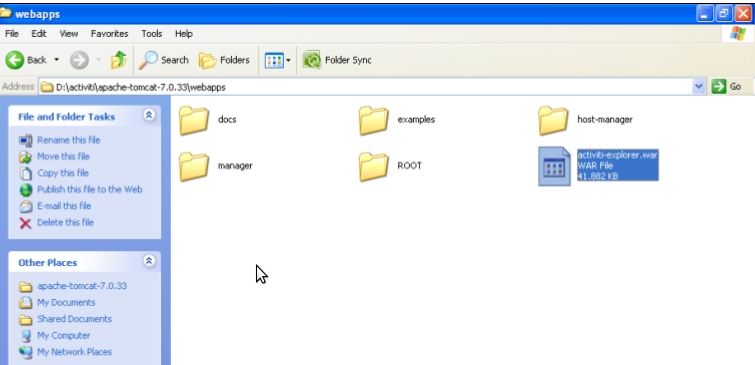
  2. Copy activiti-explorer.war from the activiti-5.x\wars folder and place it in the apache-tomcat-7.0.33\webapps folder, as shown in the following screenshot:
  3. Now we will start the Apache Tomcat server so that the activiti-explorer.war file is deployed to the webapps folder.
  4. The Windows operating system, browse to apache-tomcat-7.0.33\bin and double-click on startup.bat, as shown in the following screenshot:
  5. Now, the startup.bat file will start executing and deploying the Activiti Explorer on the system. During installation, it will set up the Activiti Engine, H2 database, default users, and much more. The result of this installation can be seen in the following screenshot:
  6. All the directories of the Activiti Explorer will be created on the apache-tomcat-7.0.33\webapps\activiti-explorer path once the installation is completed.
  7. For the Linux operating system, we can use the command prompt to start Apache Tomcat.
  8. The location of the war file will be the same as that for the Windows operating system. To start Apache Tomcat, we need to browse to the ../apache-tomcat-7.0.33/bin path using the command prompt and execute the following command:

    sh catalina.sh run

Create Thumbnail in Video in Spring and ffmpeg

import java.awt.image.BufferedImage; import java.io.File; import java.io.IOException; import javax.imageio.ImageIO; import org.jcodec.api.Fr...